

Build a Professional CV in Minutes
A complete step-by-step walkthrough of Smart CV Builder’s AI-powered CV creator from upload to download, with your content rewritten and designed for your target role.
Go to Smart CV Builder
Getting startedHead to smartcv.elite-cv.com and click “Create A CV/Cover Letter” in the top navigation, or use the main CTA button on the homepage.

Choose “Create My CV”
Stage: StartOn the Create Your Career Document screen, you’ll see two options. Click “Create My CV” on the left to begin building your CV.

Tip: Need a cover letter too? You can add one at the end of the CV process and download both together at a bundled price.
Start from scratch or upload your existing CV
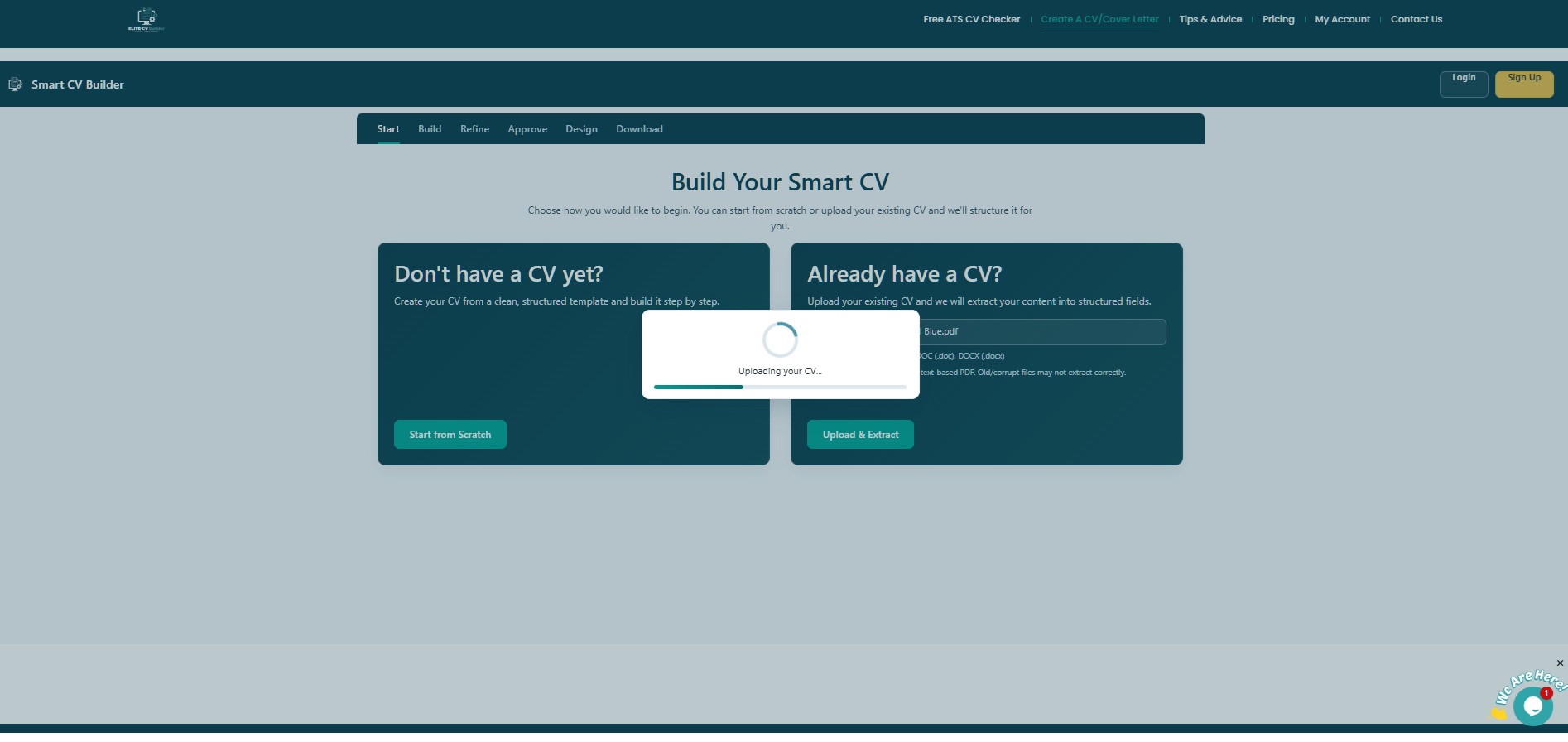
Stage: Start · Build Your Smart CVYou have two ways to begin. Choose the option that suits you best:
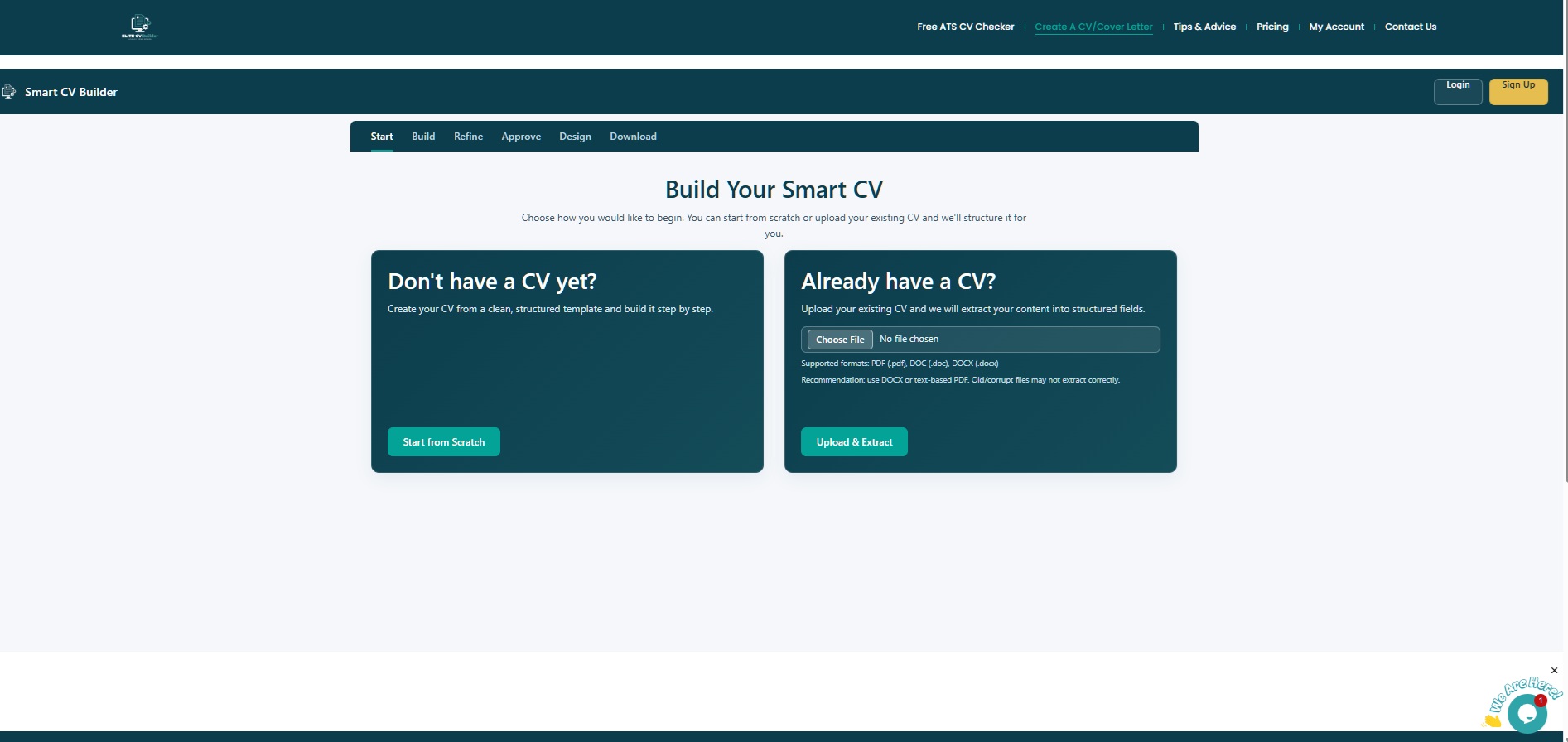
Best format for upload: Use a DOCX or text-based PDF for the most accurate extraction. Scanned or image-based PDFs may not extract correctly.
AI extracts and structures your CV
Stage: Start · ExtractingIf you uploaded an existing CV, the tool reads and structures it automatically. A live progress screen shows you exactly what’s happening.
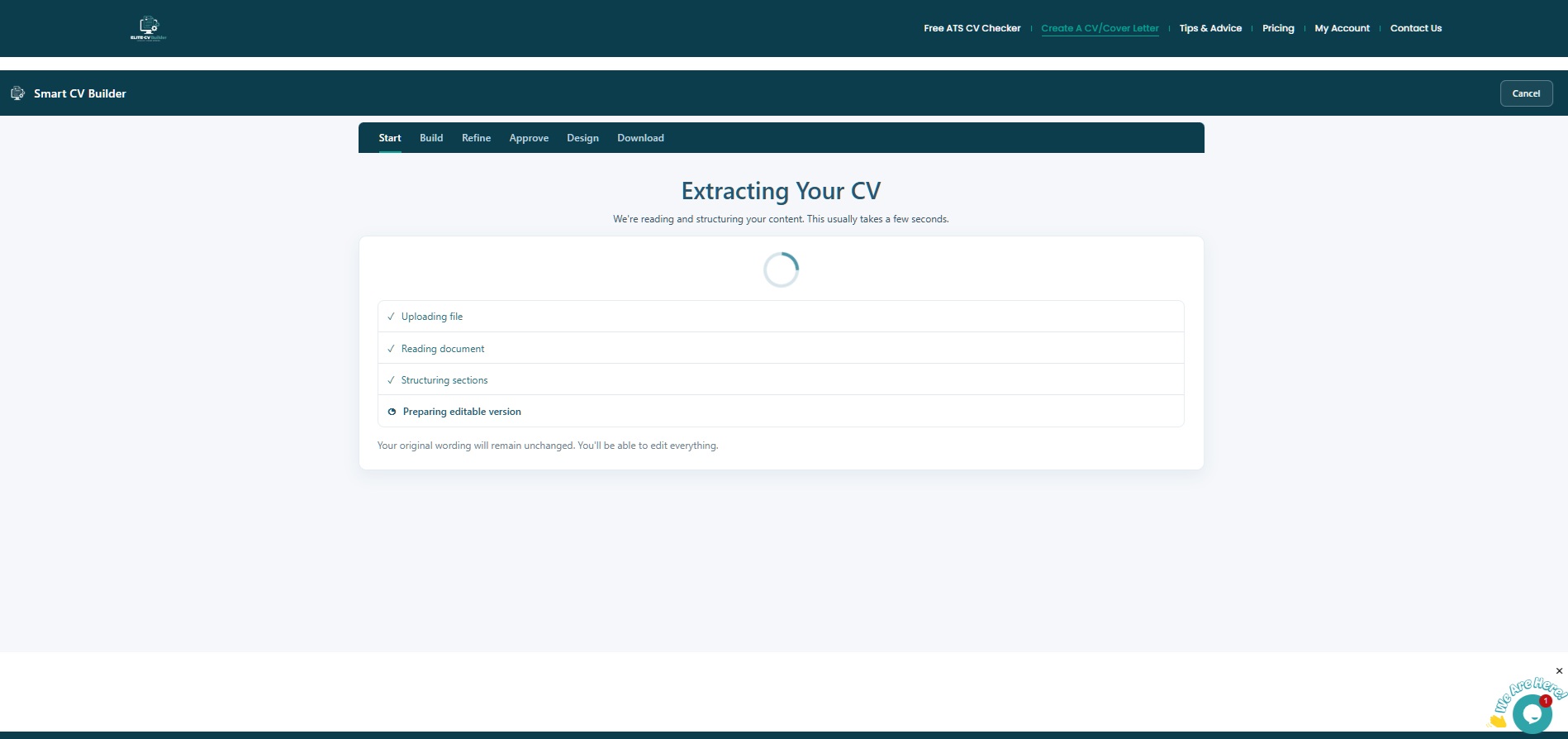
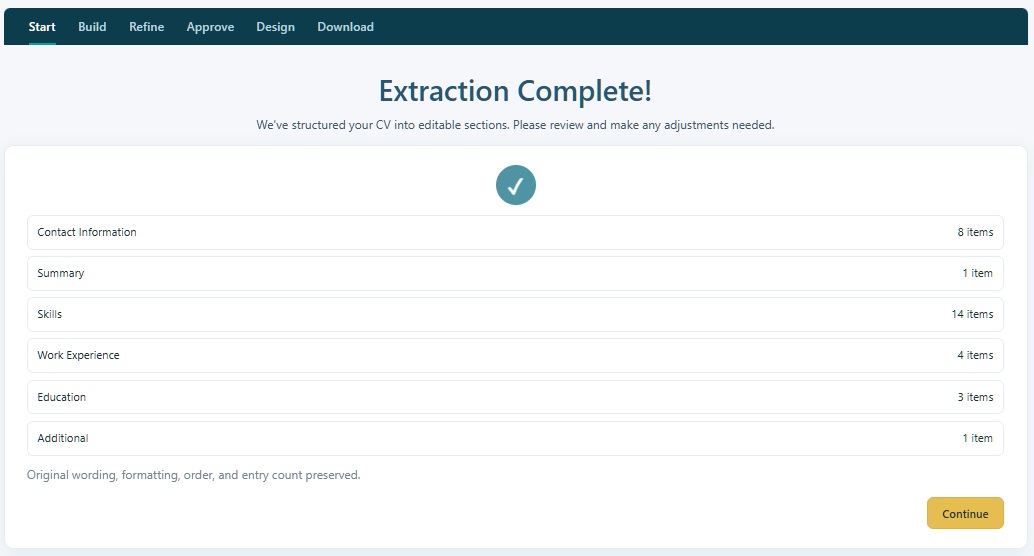
Once complete, you’ll see an Extraction Complete summary showing every section detected and the number of items found in each.
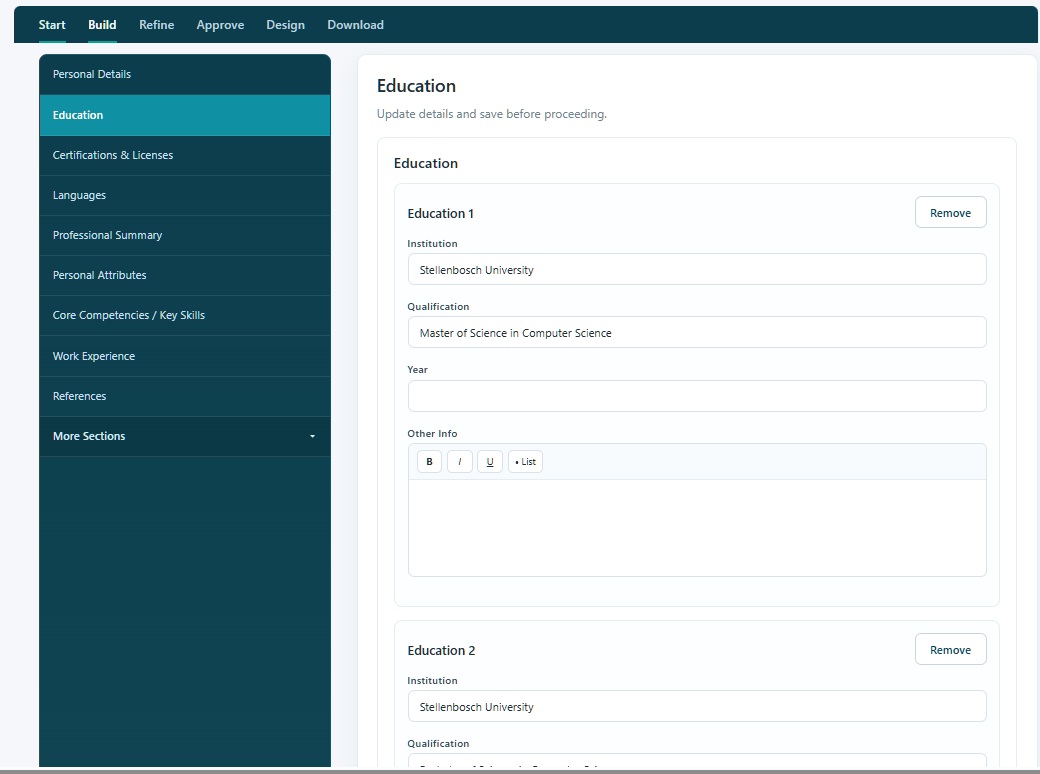
Click Continue to move into the Build stage where you can review and edit each section.
Review and edit each section
Stage: BuildThe Build stage gives you a full section editor. Navigate between all your CV sections using the left-hand menu, and update any details before the AI refines your content.
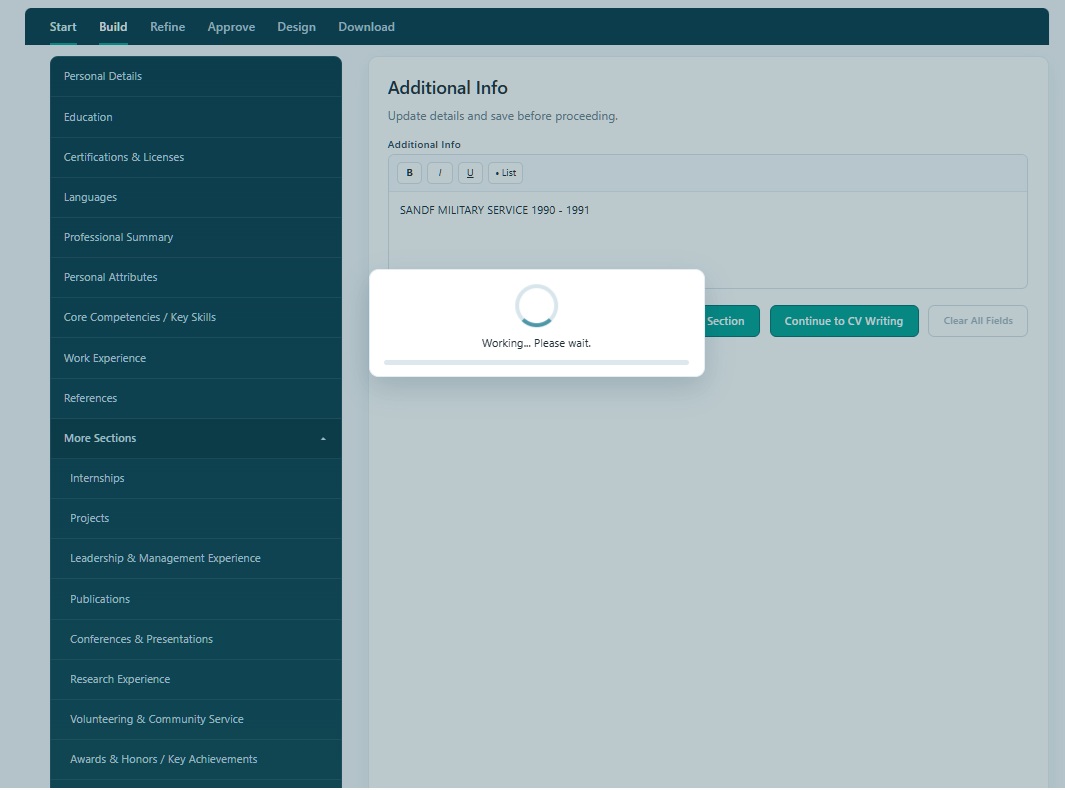
All standard CV sections are covered in the navigation menu:
Under More Sections, you can also add optional extras relevant to your background:
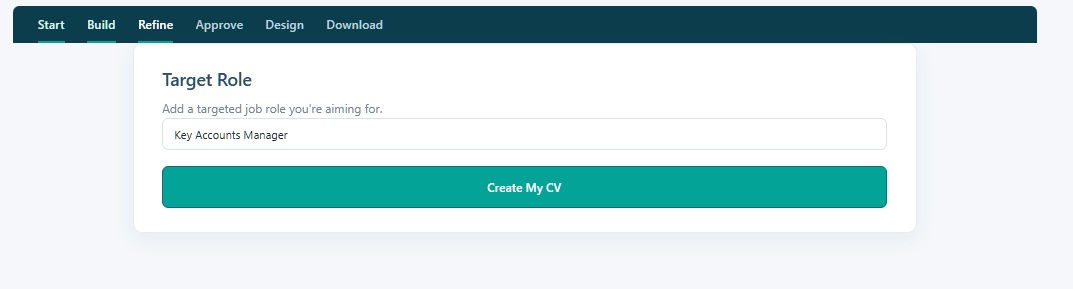
Don’t over-edit here: The AI will rewrite your content in the next stage to be stronger and better aligned to your target role. Just make sure the key facts are correct at this stage.
Enter your target role — AI rewrites your CV
Stage: Refine · AI OptimisationThis is where the magic happens. Enter the job title you’re applying for, then click Create My CV. The AI analyses your content and rewrites it to be stronger, more impactful, and aligned to your target role.
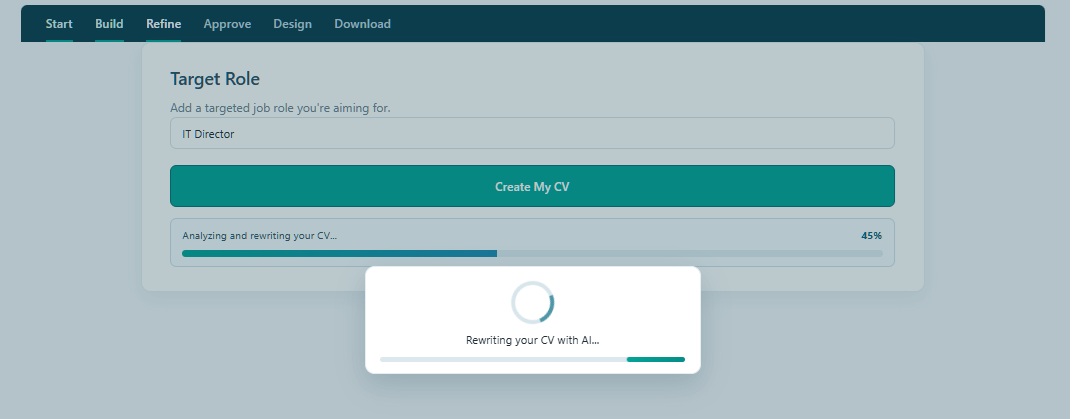
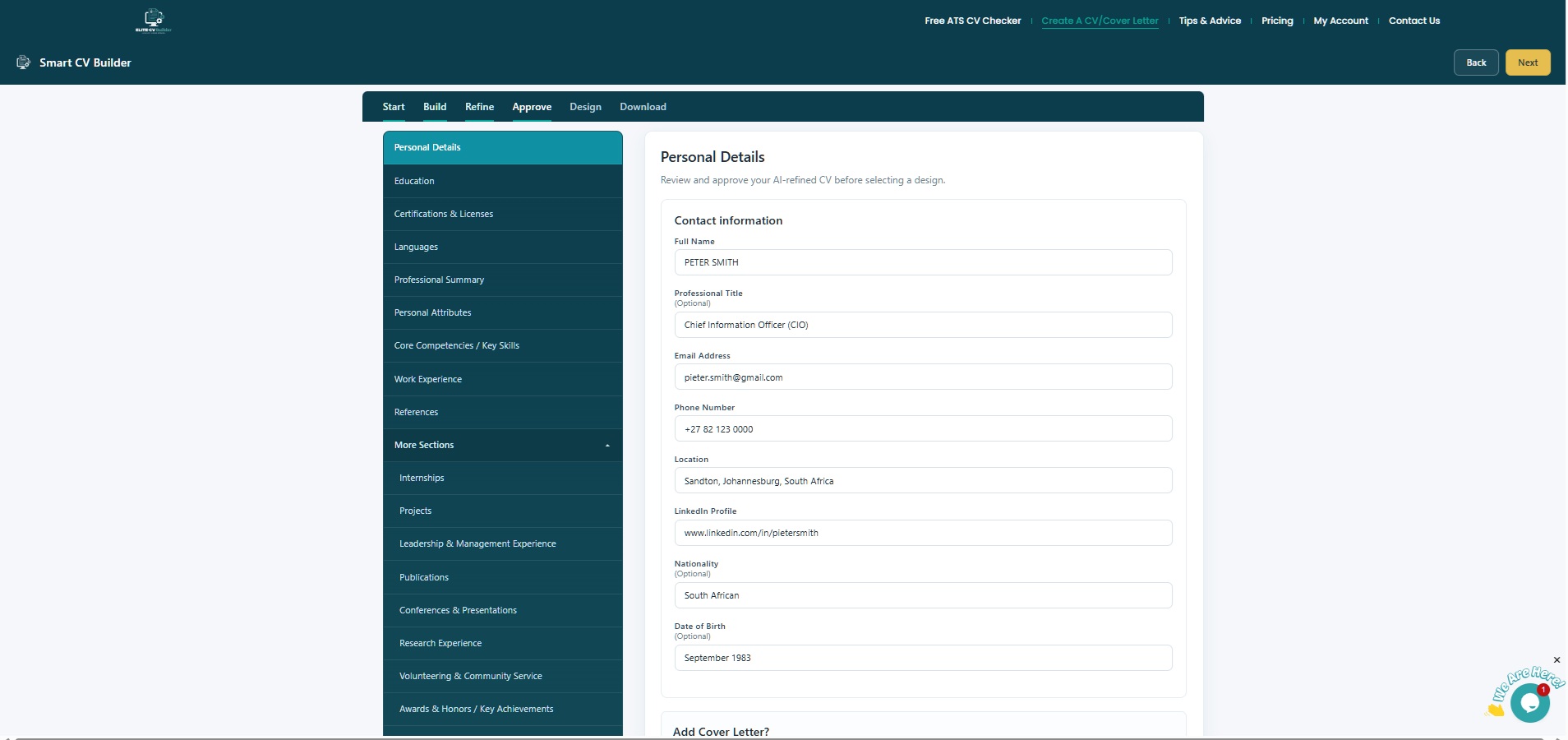
Be specific with your target role: The more precise you are (e.g. “Sales Manager” vs “Manager”), the more targeted your AI-rewritten CV will be. You can also run this for multiple roles if you’re applying to different positions.
Review and approve your AI-refined CV
Stage: ApproveThe Approve stage lets you review every section of your AI-rewritten CV before it goes to design. Work through each section using the left menu — check the content, make any final tweaks, and confirm everything is accurate.
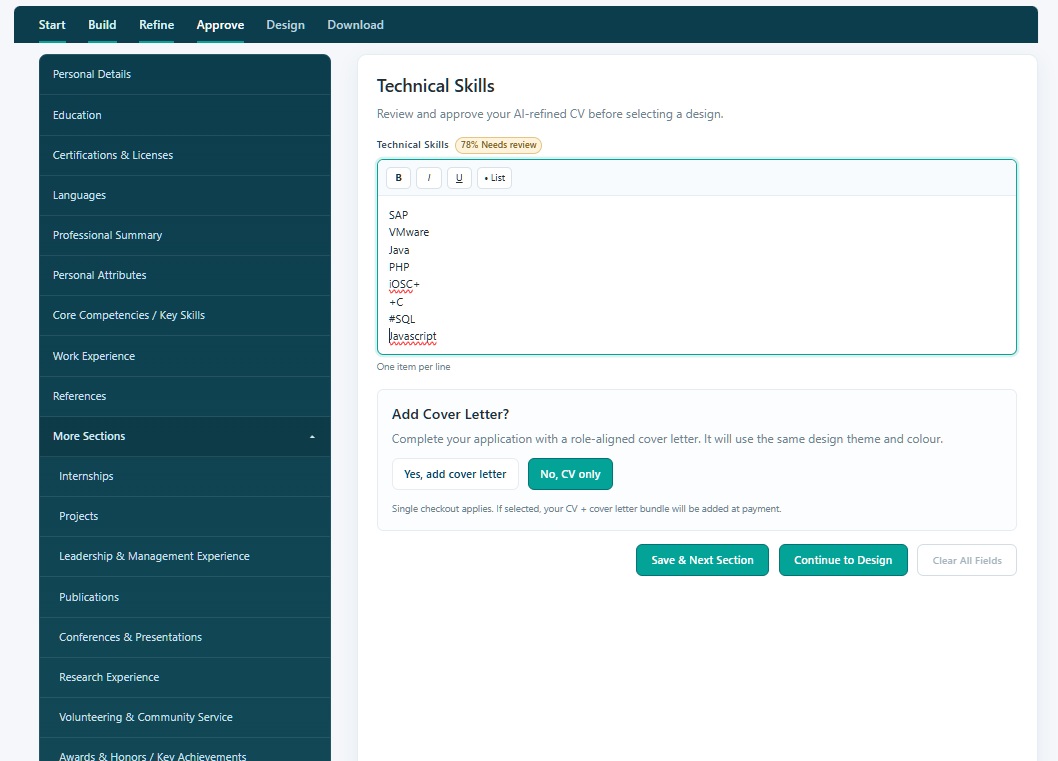
The tool may flag certain sections with a “Needs review” badge — for example, if technical skills contain formatting that needs a quick check. These are easy to fix inline.
At the bottom of the Approve stage you’ll see an “Add Cover Letter?” prompt. Choose “Yes, add cover letter” and a matching, role-aligned cover letter will be created using the same design theme and colour — available as a bundle at checkout.
Choose your design & colour
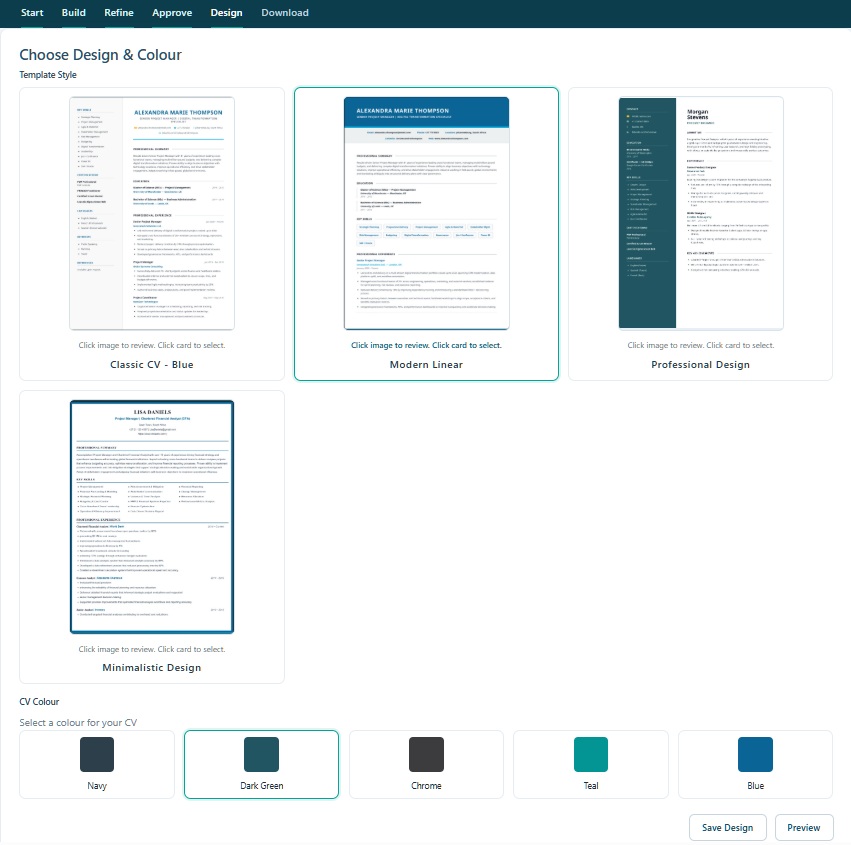
Stage: Design · Template & ColourPick from four professionally designed CV templates and select a colour to match your industry or personal brand. Click any template image to preview it with your actual content, then select your preferred colour before saving.
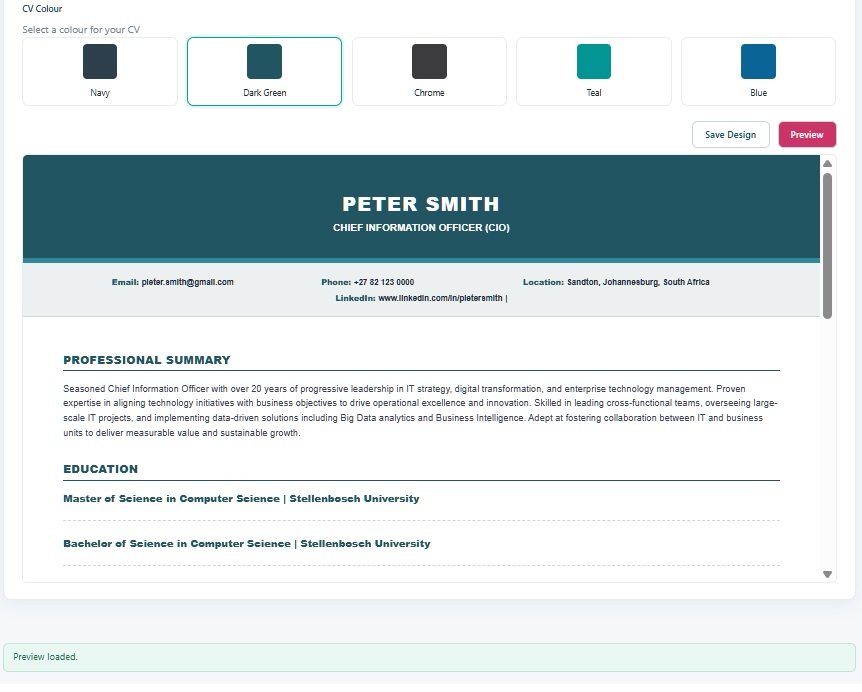
Select your CV Colour — five options to choose from:
Click Preview to see your finished CV rendered in your chosen design before proceeding to checkout.
Match your cover letter: If you’re also downloading a cover letter, use the same template and colour for a polished, coordinated application package — it makes a strong impression.
Checkout & download your CV
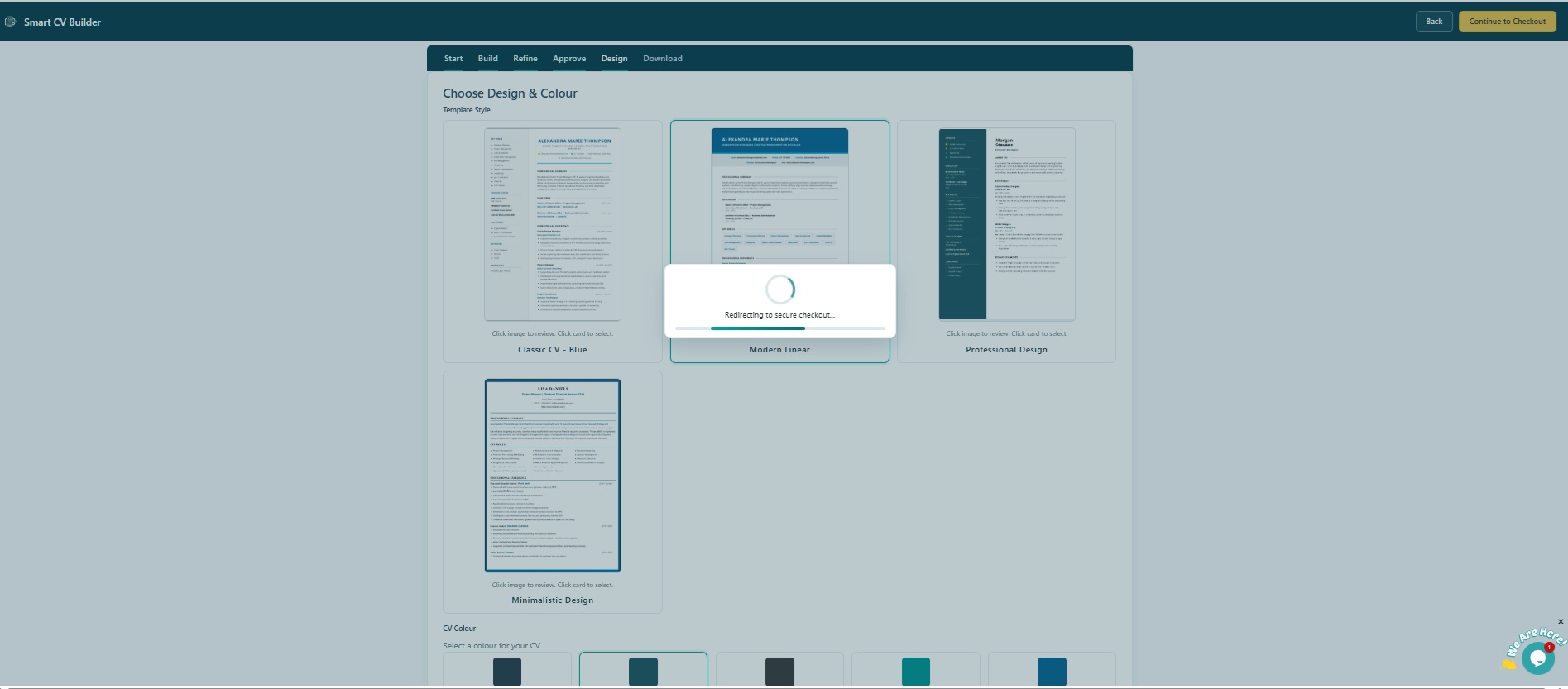
Stage: Download · CheckoutClick “Continue to Checkout”. You’ll be redirected to the secure checkout page. Complete your contact and billing details, then place your order to download your professionally formatted CV as a PDF.
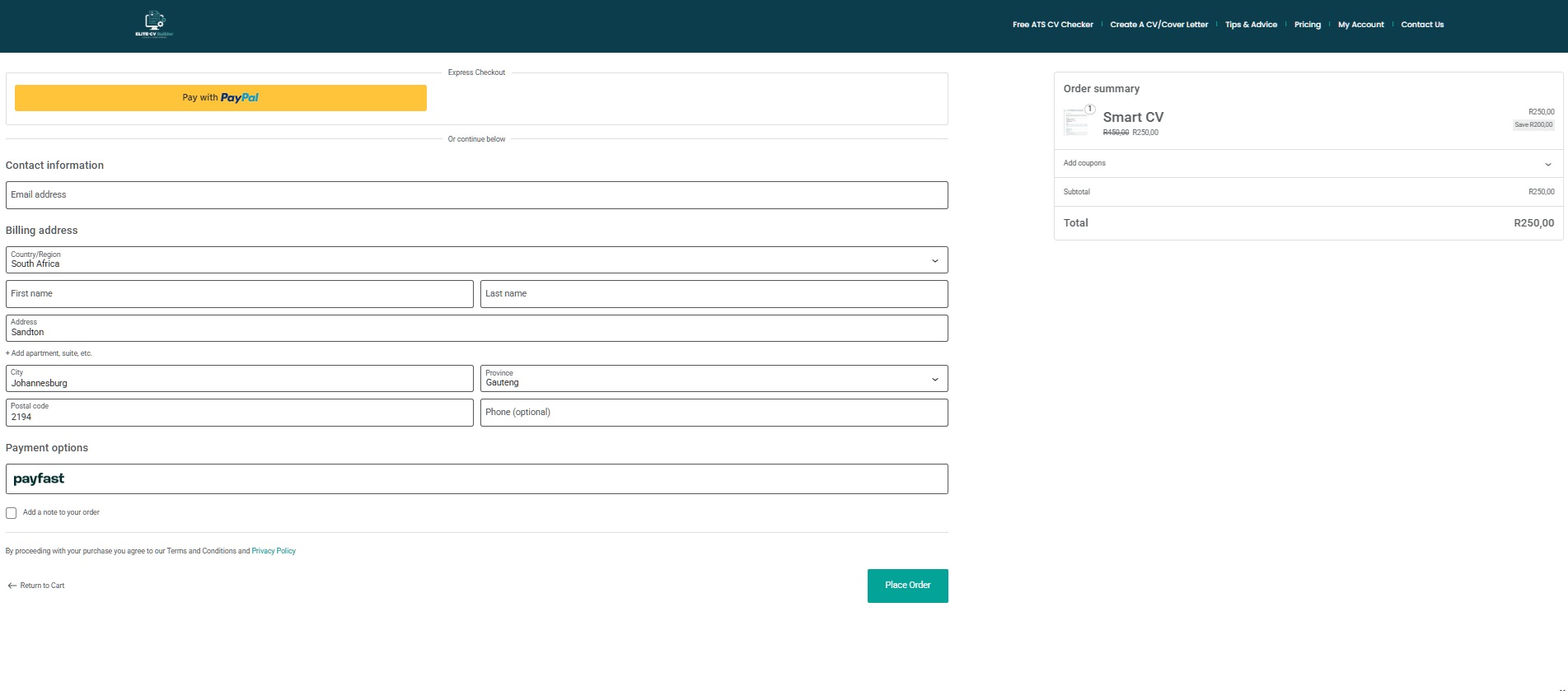
Instant download: After payment, your CV downloads immediately as a professionally formatted PDF — ready to send to recruiters and attach to any job application.
Ready to build your CV?
Join thousands of job seekers who’ve landed interviews with a Smart CV Builder CV.
Build My CV Now View Pricing